
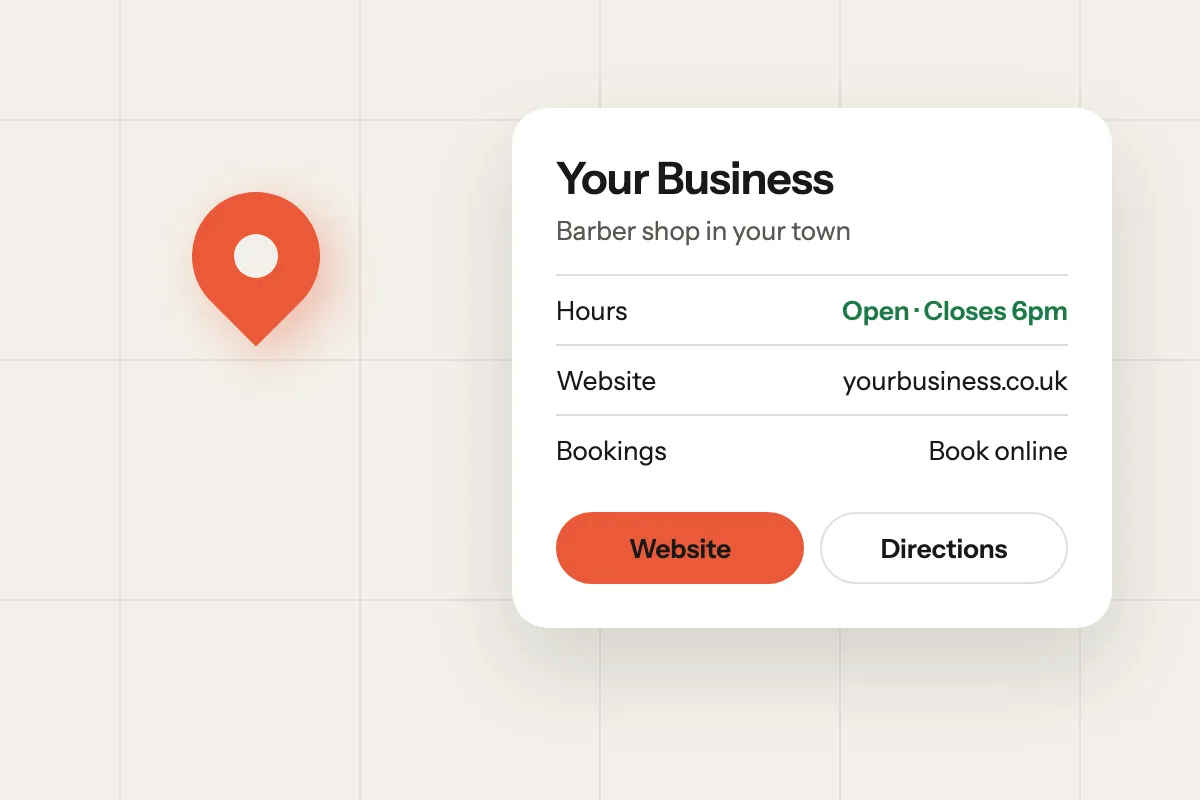
When someone searches for a business like yours, or for your name, the panel on the right of Google’s results (or near the top on a phone) and your pin on Google Maps come from your Google Business Profile. For many local businesses it’s seen more often than the website itself.
It’s free, and setting it up properly takes an afternoon. Here’s how.
1. Check whether you already have one
Search for your business name on Google Maps. Google sometimes creates a basic listing from public information, and a previous owner or an old supplier may have made one. If a listing exists, claim it rather than making a second one: duplicates confuse Google and your customers.
2. Create or claim your profile
Go to Google Business Profile (google.com/business) and sign in with the Google account you want to manage it from. Use an account the business controls, not one belonging to whoever happened to set it up.
Use your real business name, exactly as customers see it on your sign, van or invoices. Adding keywords or your town to the name is against Google’s guidelines and can get a profile suspended.
3. Choose your categories carefully
Your primary category matters most. Pick the one that describes what you are, not everything you do: “Barber shop” rather than “Beauty salon” if you’re a barber. You can add secondary categories for other services.
4. Address or service area
- If customers come to you, add your address.
- If you go to customers, such as a builder or a mobile groomer, hide your address and set the areas you cover instead.
5. Verify
Google needs to confirm the business is real before your profile shows properly. Depending on your business it may offer a video recording, a phone call or text, an email, or a postcard. The options vary, so use whichever it offers and follow the instructions to the letter.
6. Fill in everything
A complete profile gives Google, and customers, more to go on.
- Opening hours, plus special hours for bank holidays and Christmas
- Website link (to the most relevant page, usually your homepage)
- Contact details customers should use
- Description: what you do, who for and where, in plain words. You have up to 750 characters; use them.
- Services or products, with prices if you’re happy to show them
- Booking link, if customers can book online
7. Add real photos
Add your logo and a cover photo, then real pictures: outside (so people recognise you), inside, your team and your work. Skip stock photos. Add new ones every so often.
8. Ask for reviews, and reply to them
Reviews matter to customers and to how you appear locally. Ask happy customers to leave one; a short link or QR code makes it easy. Reply to every review, good or bad, politely and briefly. Don’t offer anything in return for reviews, which is against Google’s rules.
9. Keep it up to date
Change your hours before a holiday, not after. Update services and prices when they change. An out-of-date profile sends people to a closed door.
Mistakes to avoid
- Two profiles for the same business
- Keywords stuffed into the business name
- A personal Gmail account nobody else can get into
- Leaving it half finished after verification
- Ignoring reviews
Want it done for you?
Setting up your Business Profile, Search Console and Analytics is part of every one of our plans, from £20 a month. It matters most for local searches; see our web design in County Durham page for how we approach it. If you already have them, we connect them to your new site rather than starting again.